Custom Tools Overview
Custom MCP Tools enable organizations to extend arnold™ with their own SAP-powered capabilities, allowing AI agents to interact with business data in ways that align with company-specific processes, policies, and security requirements.
Rather than relying solely on prebuilt tools, administrators can create tailored experiences that determine how AI agents access, process, and present SAP information.
Key Benefits:
Business Flexibility
– Create tools that support unique business processes and SAP data models.
Customer Independence
– Build and manage new capabilities without requiring product enhancements or custom development from enosix.
Controlled AI Access
– Define exactly what SAP data an AI agent can retrieve and use.
Response Customization
– Shape and simplify SAP responses before they are presented to end users.
Data Governance
– Expose only the information users need while hiding sensitive or unnecessary fields.
Custom Tools Tab
The Custom Tools area provides a toolkit that allows administrators to:
- Create new custom MCP tools directly in the UI
- Import existing tool metadata
- Export tool configurations for reuse or migration
- Manage tool definitions for specific AI agents or personas
This makes it easy to standardize and share tool configurations across environments.
Custom Tool Schema
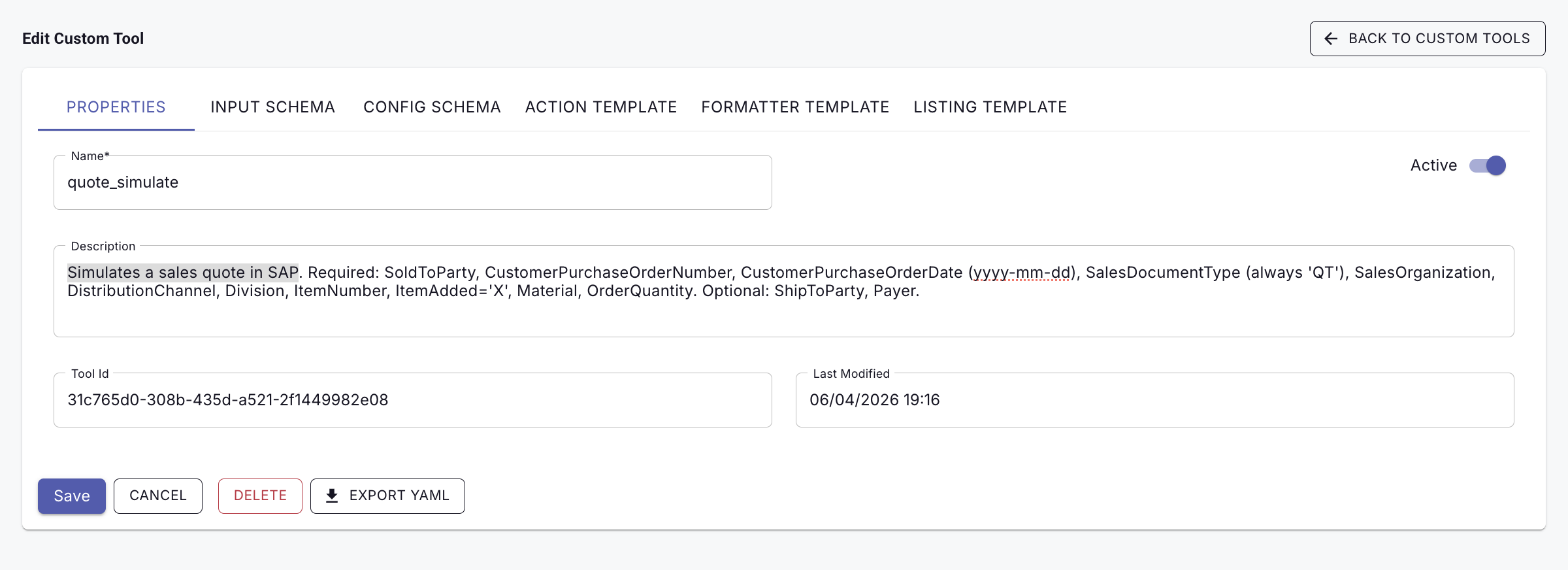
Properties
Defines the basic information about the tool.
Used for:
- Tool name
- Description
- Enable/disable the tool
Example:
- A tool called:
quote_simulate - Description explains: “This tool simulates a sales quote in SAP.”
- Unique tool ID is assigned
- Last Modified Date
Input Schema
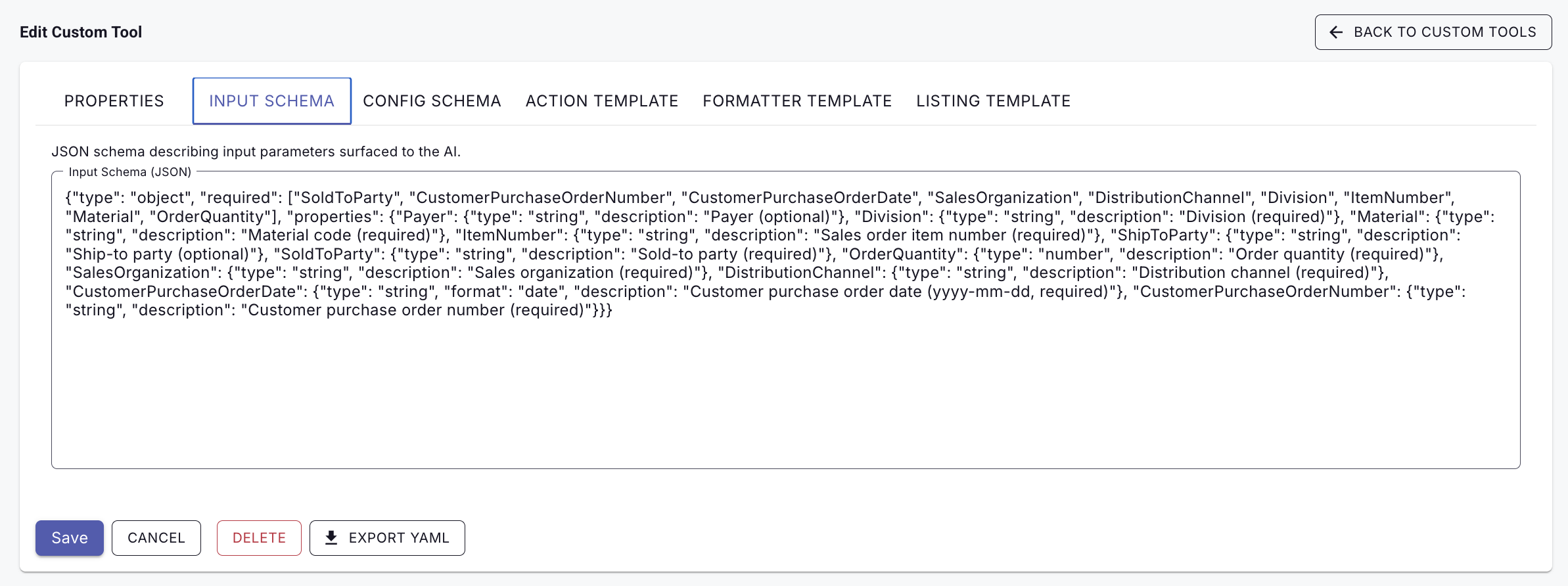
Defines what information the AI is allowed to ask for when using the tool.
For MCP inputSchema details, see MCP inputSchema reference.
Used for:
- Sales Area
- Sold To Party
- Material Details
- Customer PO Details
Example:
The AI may ask:
- “What Sales Area?”
- “What material?”
- “What Customer?”
Config Schema
Stores admin-controlled settings that are hidden from the AI and end user.
Used for:
- Default page size
- Internal configuration values
- Fixed system settings
Example:
Always return:
20 records per page without the AI needing to know that setting exists.
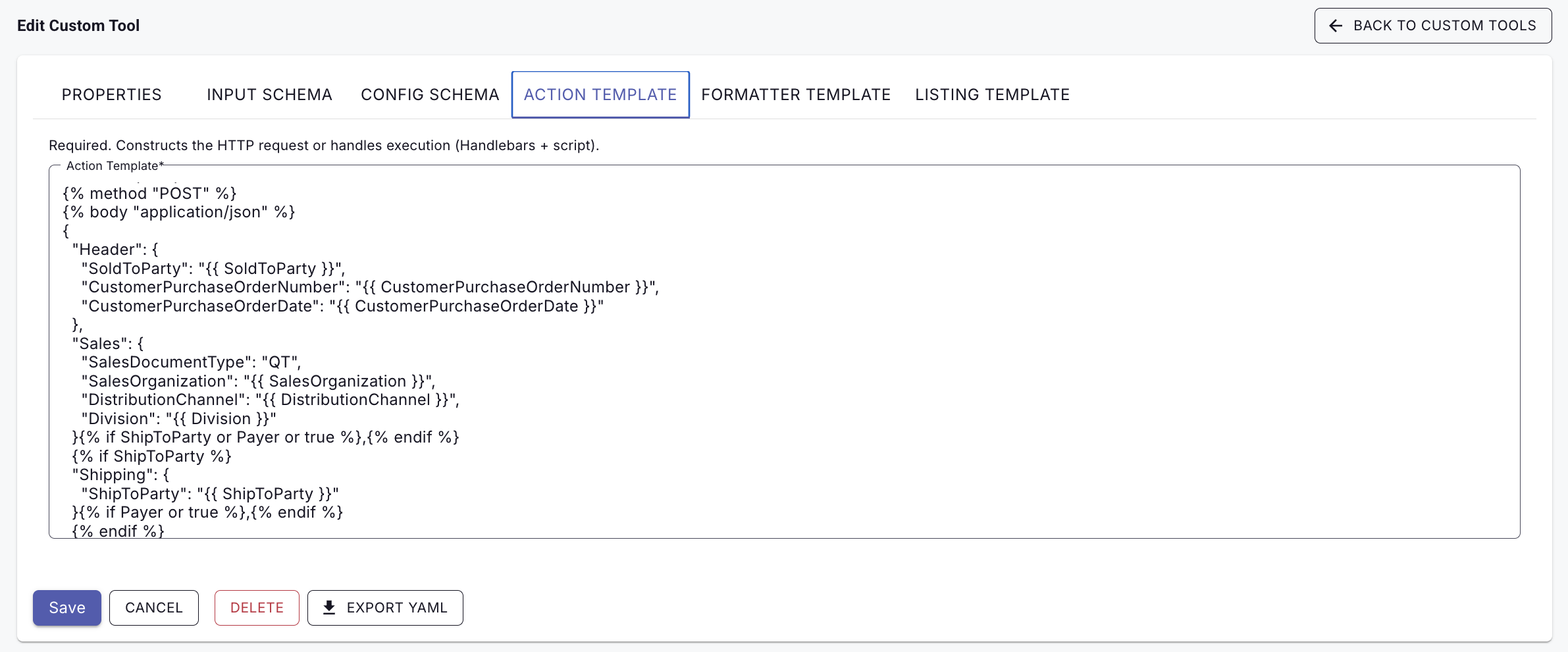
Action Template
Defines what happens behind the scenes when the tool runs.
Used for:
- Calling SAP APIs
- Sending search parameters
- Building the request sent to SAP
Example:
When user asks:
“Simulate quote for customer 500070 and material ALTA with qty 4”
The Action Template builds and sends the SAP search request automatically.
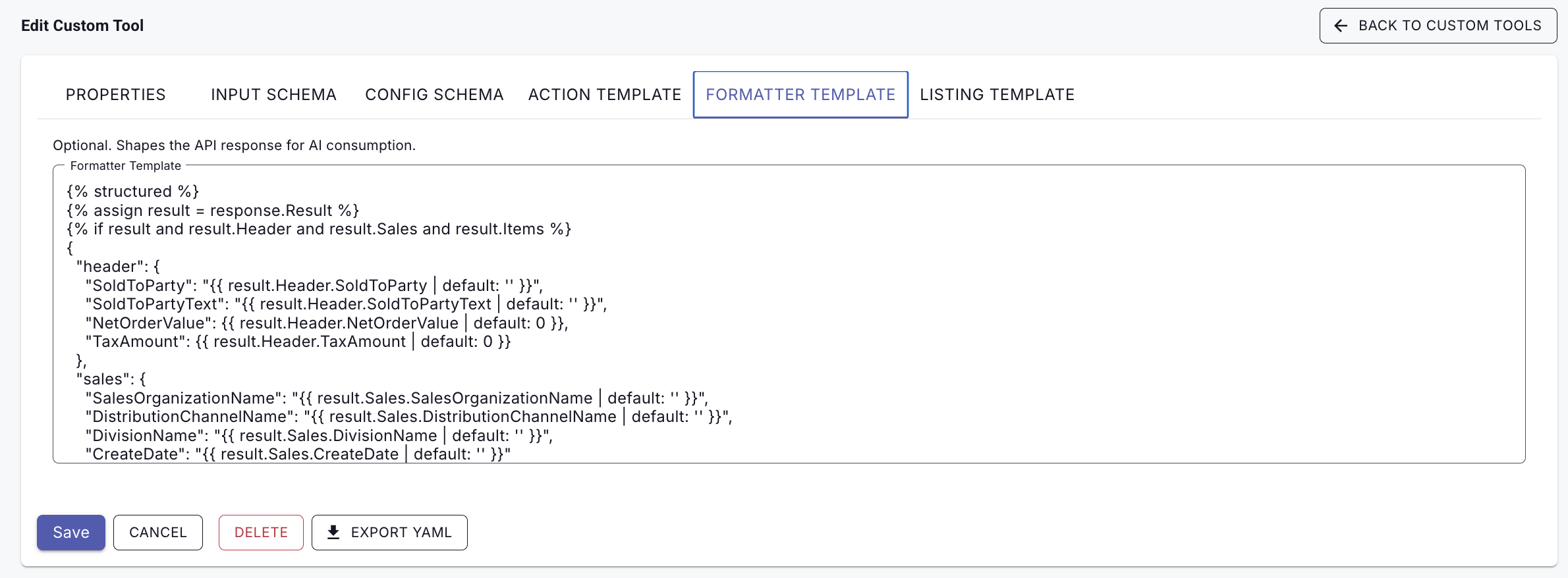
Formatter Template
Controls how the SAP response is presented back to the AI and user.
Used for:
- Simplifying SAP responses
- Choosing which fields to display
- Data Protection
Example:
Instead of returning 50 SAP fields, display:
- Material Code
- Material Description
- Price
Listing Template
Controls how the tool appears to the AI during tool discovery.
Used for:
- Adjusting tool visibility
- Changing descriptions dynamically
- Showing tools only in certain situations