Adding the arnold™ MCP Connector in Copilot Studio via Dynamic Client Registration (DCR)
Dynamic Client Registration (DCR) is a simplified onboarding process that allows a Microsoft Copilot Studio agent to securely connect to arnold™ without requiring administrators to manually create Client Apps in the arnold Portal ahead of time.
Step 1: Add Agent Instructions
To ensure proper SAP data handling and secure tool usage, configure the agent instructions as follows:
- Only use the arnold™ MCP tools for all SAP data retrieval.
- Do not assume or fabricate information. All responses must come directly from tool calls.
- Display returned data in a clear, readable format.
- Provide a SUMMARY for each response that explains the returned data.
These instructions enforce tool-based retrieval, prevent hallucinations, and standardize output formatting.
Step 2: Add the MCP Connector
Before You Begin
To successfully use DCR, an administrator must already have:
- Admin access to the arnold™ Portal
- At least one SAP Connection configured in the arnold™ Portal
Connecting Your Copilot Studio Agent to arnold™
Step 1 — Open Your Agent in Copilot Studio
In Microsoft Microsoft Copilot Studio:
- Open your custom Agent
- Navigate to the Tools tab
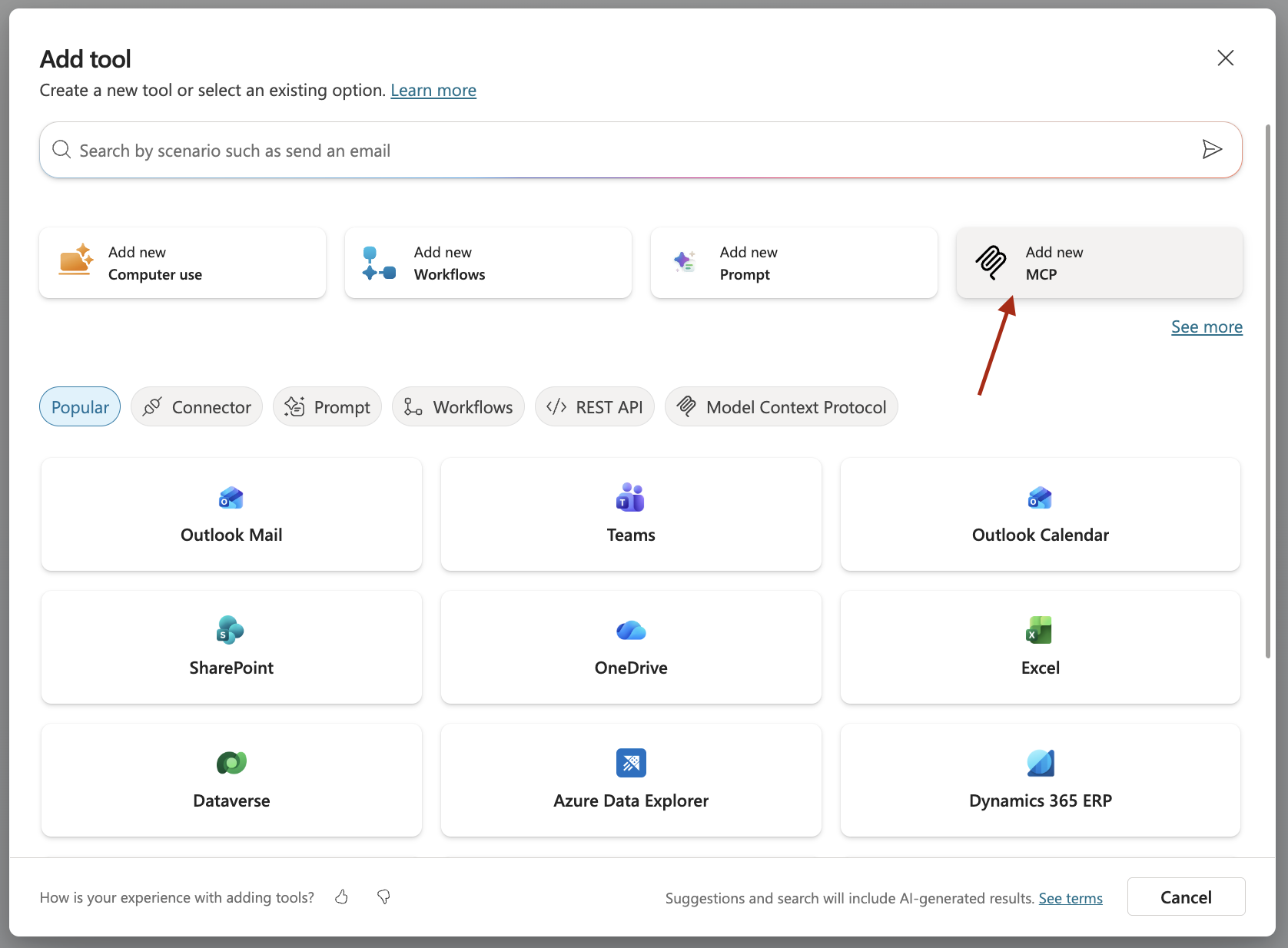
- Select Add Tool
- Choose MCP
MCP Connector Configuration
Configure the connector with the following values:
-
Server Name
any meaningful alphanumeric value -
Server Description
any meaningful alphanumeric description not less than 30 characters -
Server URL
your portal URL followed by /mcphttps://na.arnold.enosix.com/mcp -
Authentication Type
OAuth 2.0 -
Discovery Type
Dynamic discovery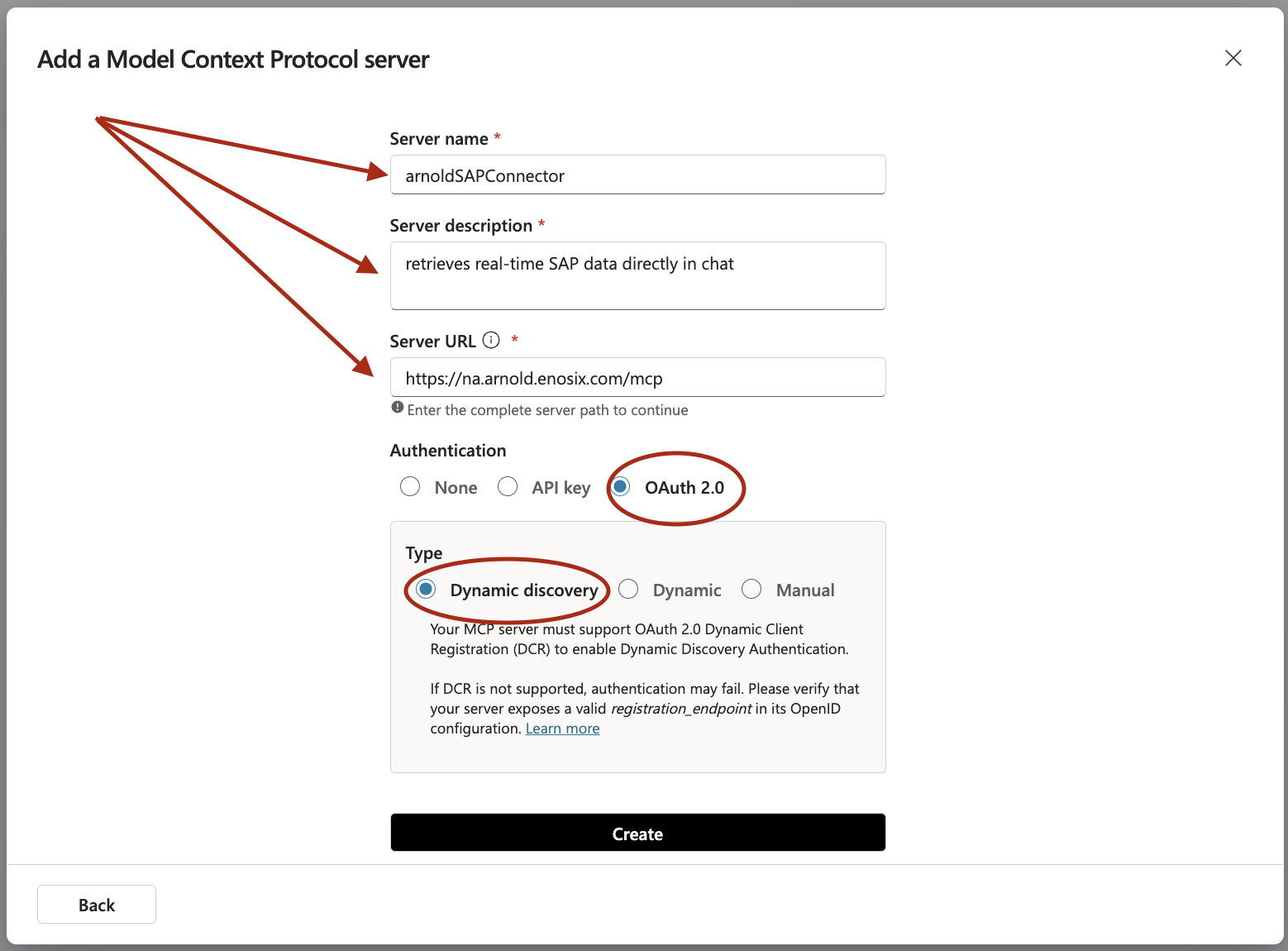
- Click Create.
Step 3: Connect the MCP Connector
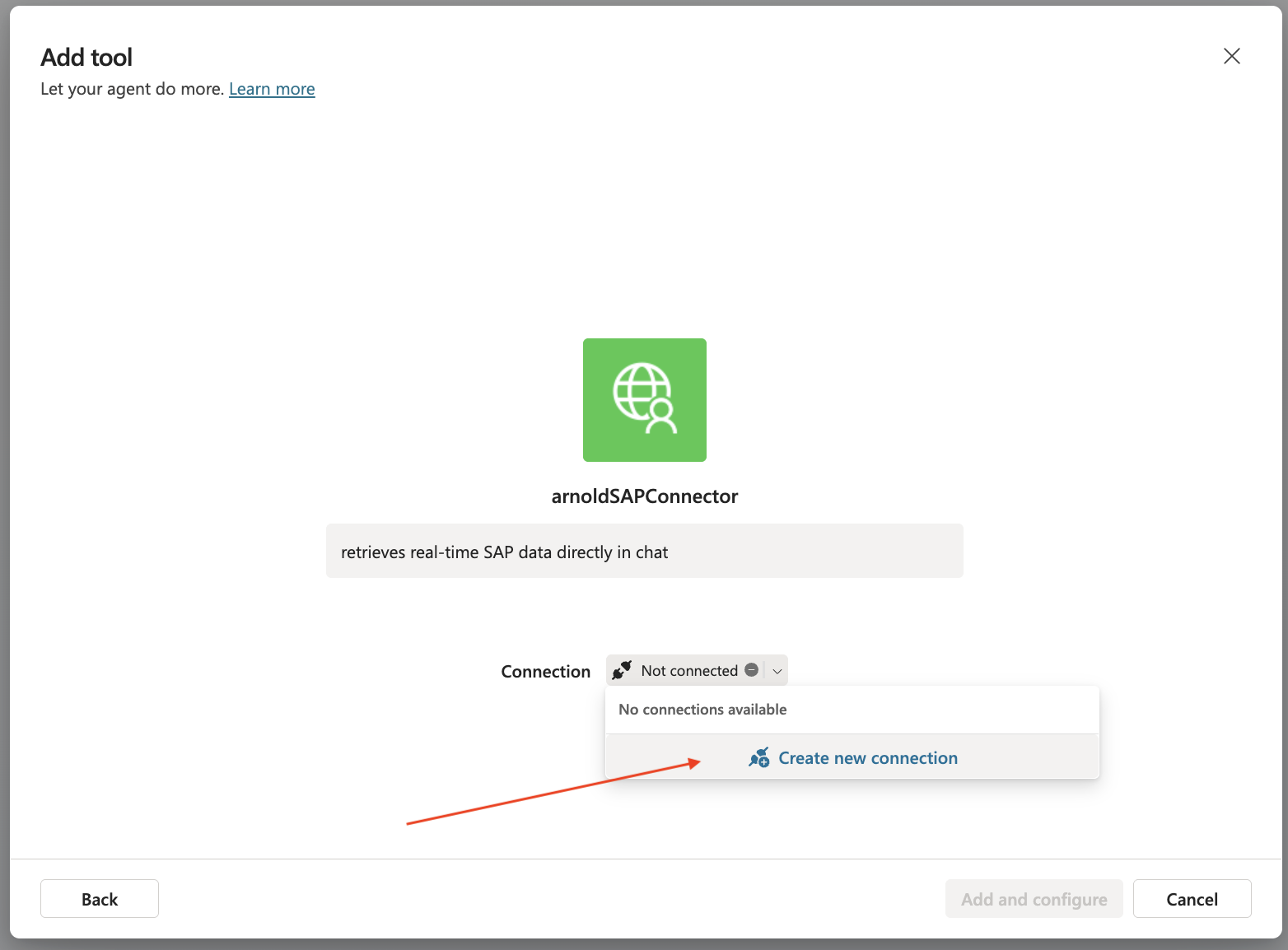
- When prompted, click Not Connected.
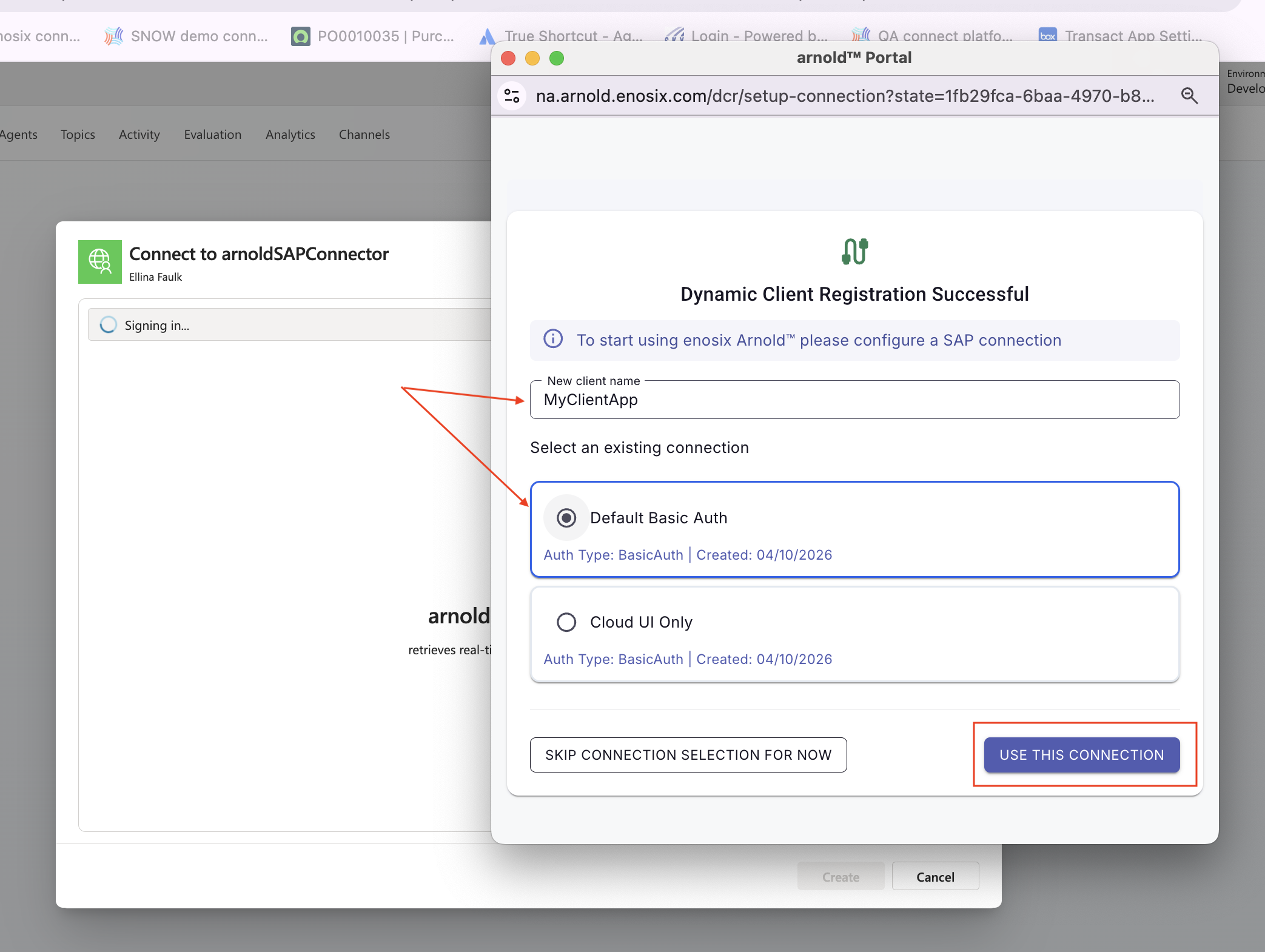
- Authenticate using your corporate credentials
- Select the connection created in the arnold™ Portal.
- Name your new DCR Client App
- Click Create.
- Click Add and Configure.
The MCP connector is now attached to the agent.
Step 4: Review Connector Settings and Tools
After configuration, you will land on the connector detail screen.
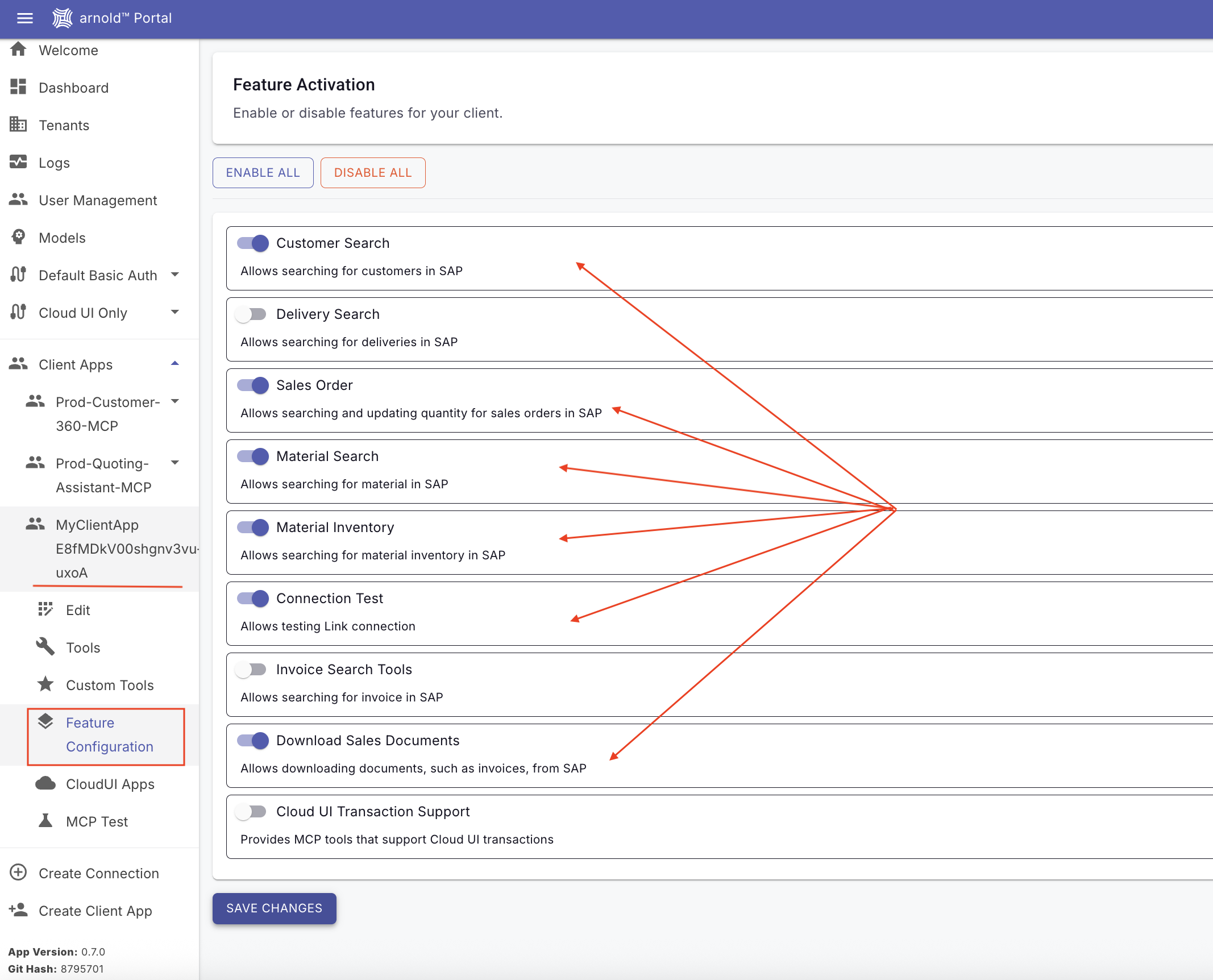
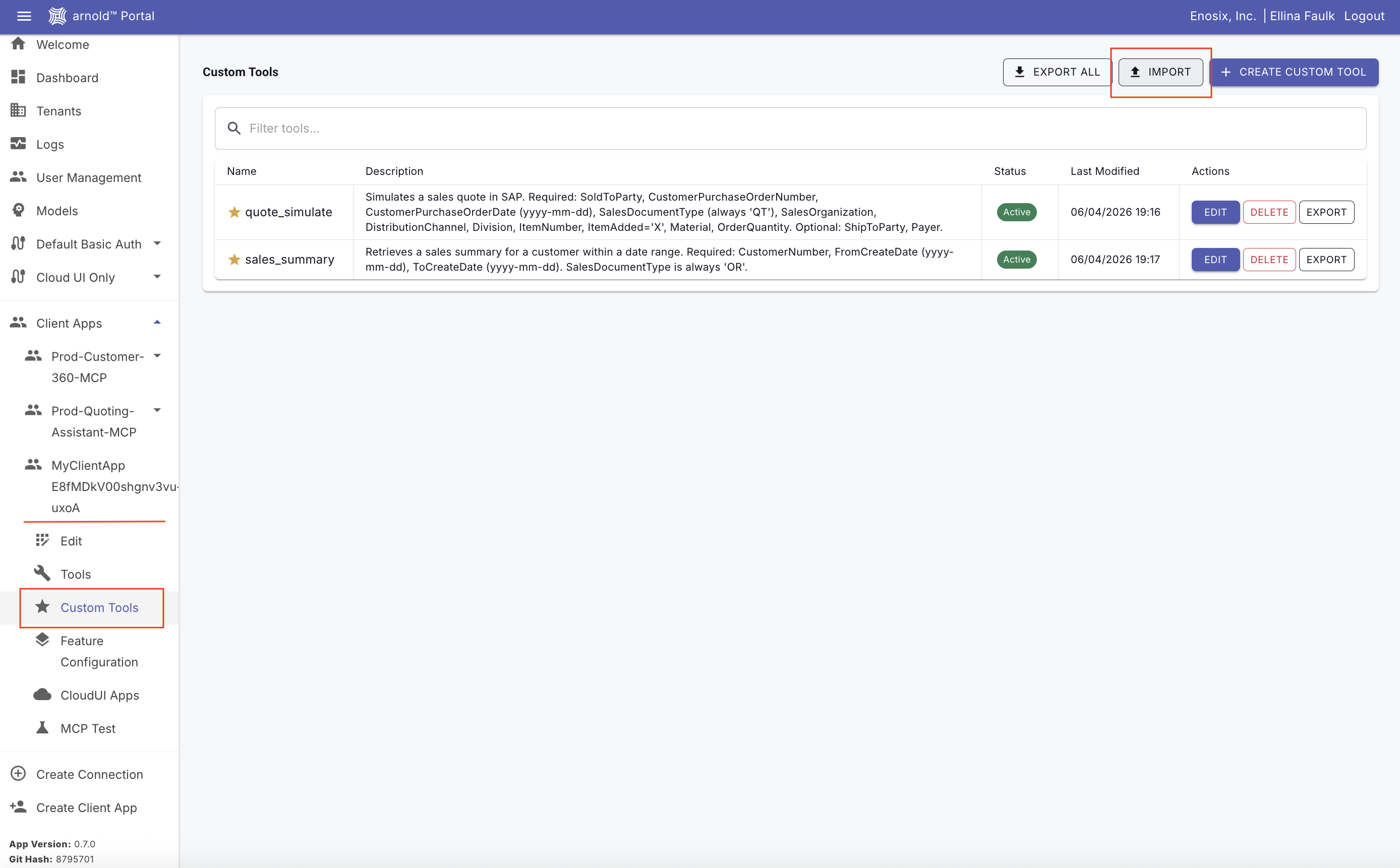
Step 5: Review your Client App in Portal
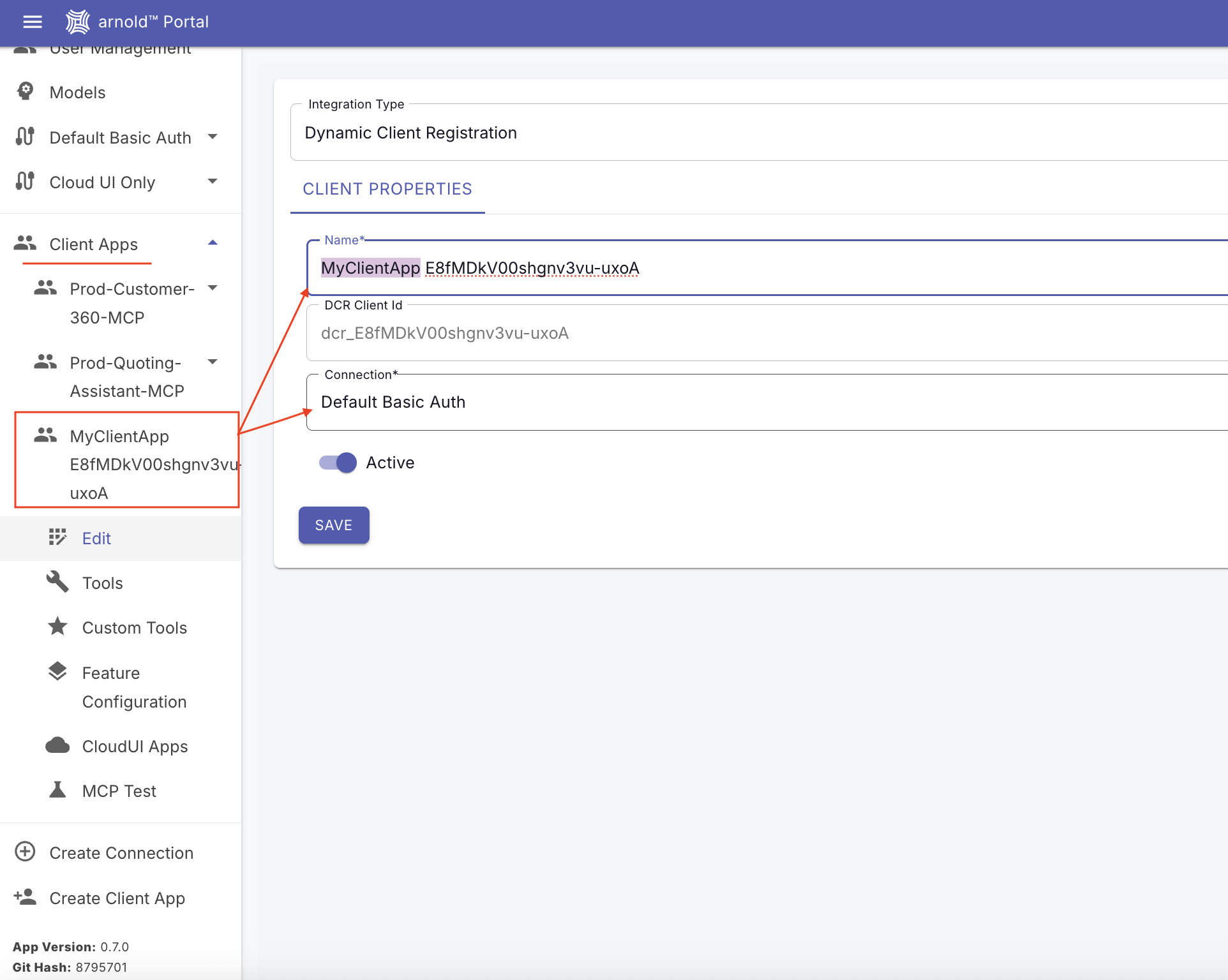
- Enable required prebuilt features in Feature Configurations.
- Import required custom tools in Custom Tools tab.
Authentication Mode
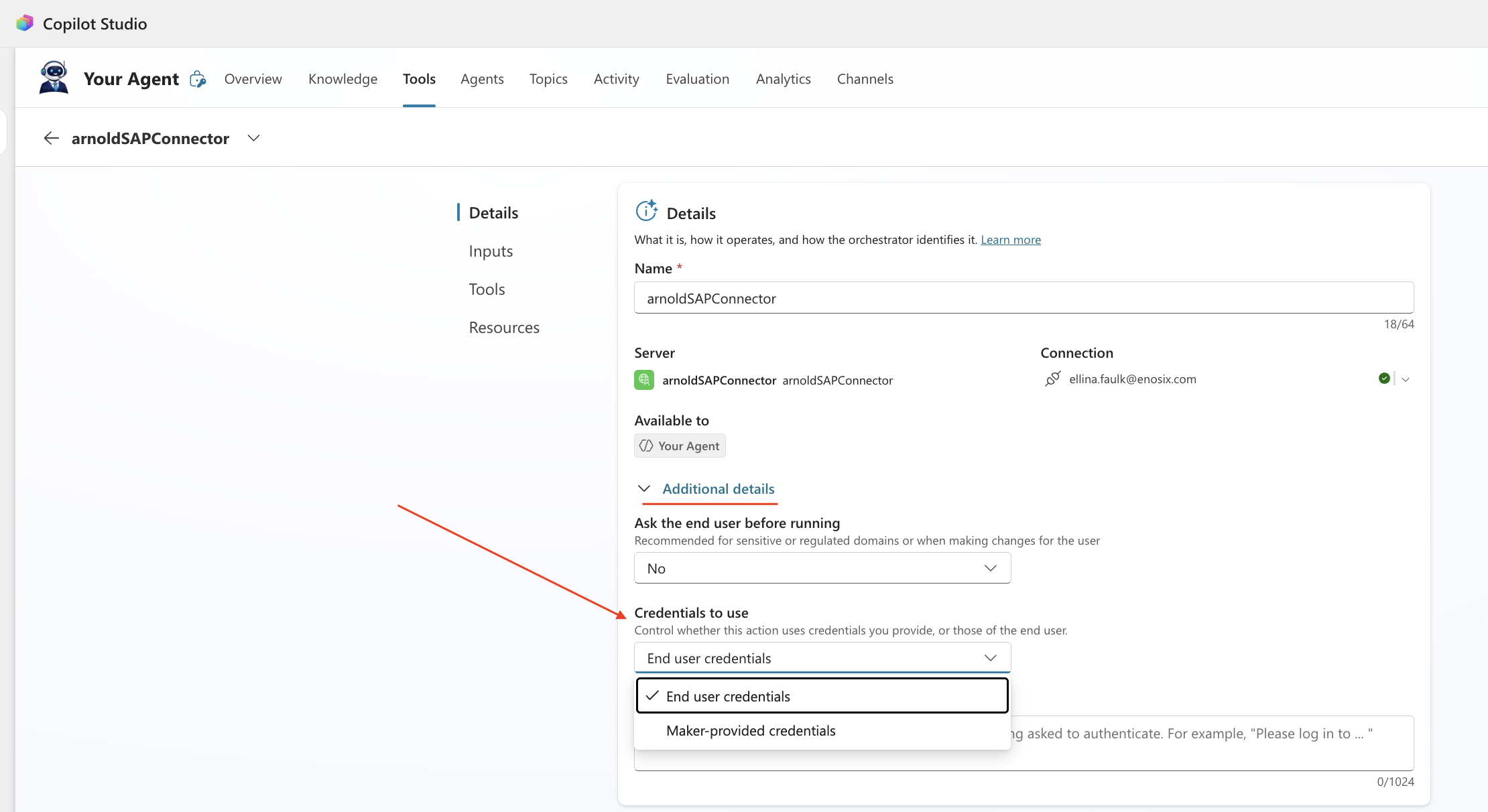
By default, the MCP connector uses End-user credentials.
- Each user must authenticate individually before accessing SAP data.
- This ensures user-level security, traceability, and audit logging.
- All activity is logged under the individual user in arnold™ Portal.
For testing or controlled demo environments, you may switch to:
Maker-provided credentials
- The agent accesses SAP using a shared credential.
- Individual user authentication is not required.
- All SAP logs in arnold™ Portal will appear under the shared credential.
Use Maker-provided credentials only for non-production or controlled testing scenarios.
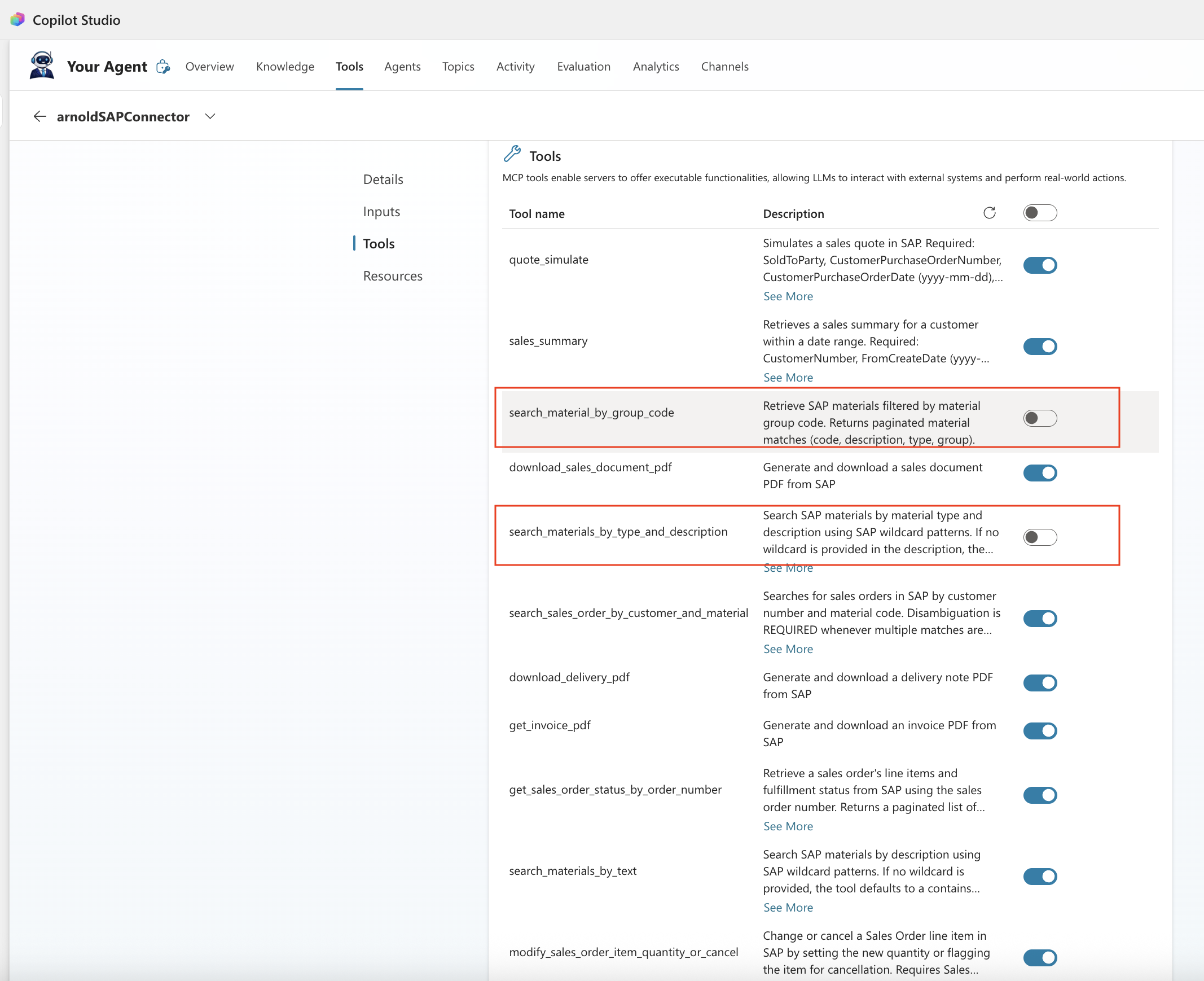
Tool Management
To control the scope of the agent:
- Open the Tools section.
- Review the dynamically discovered tools.
- Disable any tools not required for this specific agent.
Example:
material_search_by_groupmaterial_search_by_type
- Click Save.
Restricting tools improves security and reduces unintended tool invocation.
Step 5: Publish the Agent
Share the agent with employees in your organization who have permission to use it.
- Click Publish.
- Select Force newest version.
- Confirm publishing.
Publishing may take several seconds.
Step 6: Enable the Microsoft 365 Copilot Channel
- Navigate to Channels
- Select Microsoft 365 Copilot.
- Click See agent in Microsoft 365.
If the channel is not visible, add the Microsoft 365 Copilot channel first.
- Click See agent in Microsoft 365 to open it.
Step 7: Add and Share the Agent
- In Microsoft 365, click Add.
- Once installed, the agent appears under Agents in the left menu.
- Hover over the agent, click More, then select Share.
- Copy the share link and distribute it to pilot participants.
The enosix arnold™ MCP connector is now fully configured and available through Microsoft 365 Copilot.