The Checkout Process
Your customer’s shopping cart is locked during the checkout process. If your customer wants to modify shopping cart items, they must click Cancel Checkout, then add/delete/modify items, then they can proceed to checkout after they finalize their shopping cart items. Throughout the checkout process, enosix Commerce uses real-time SAP data to calculate and display the Ship To address, shipping costs, billing address, taxes, item prices, and total price. During checkout, customers are limited to ordering the maximum quantity (example: up to 50 items per order) specified by SAP’s available to promise (ATP) date. A description of each step in the checkout process is provided below.
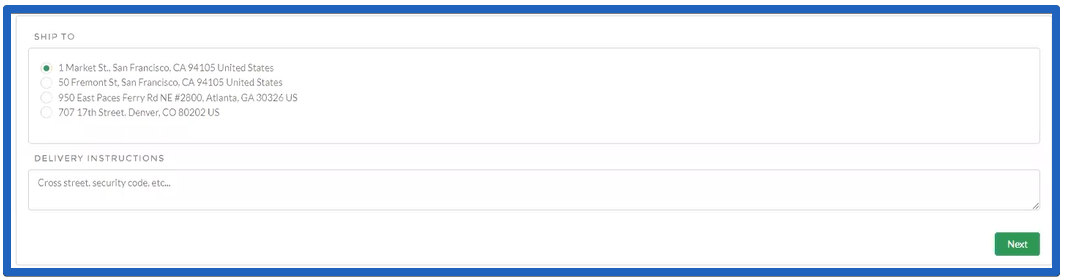
Ship To Screen
On the Ship To screen, your customers select where to ship the items that they purchase. The list of Ship To addresses is synchronized from SAP. If your product pricing depends on the Ship To address, your ecommerce site can be customized so a Ship To address is selected on the home page or on product listing pages. This way, the displayed prices take into account the correct Ship To address. If a customer has many Ship To addresses, a more advanced selection control can let them search more easily rather than having to scroll through a long list of radio buttons.
Your customers can provide special Delivery Instructions in the** Ship To** screen's text box. After they click Next, the system confirms product pricing, then calculates tax and shipping costs based on your existing SAP data and logic. This process uses your business logic and third-party extensions that are already present within SAP.
Checkout Summary Screen
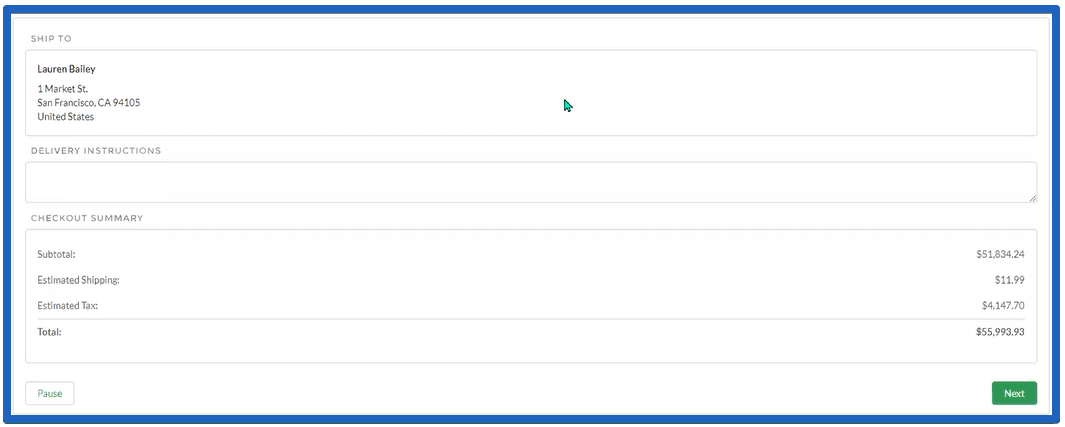
On the Checkout Summary screen, your customers see the Ship To address, special Delivery Instructions, and a Checkout Summary for their order. After they verify that their order information is accurate, they click Next.
Payment Screen
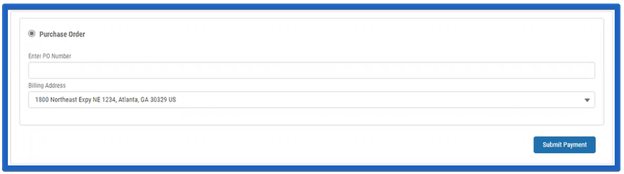
On the Payment screen, your customers enter a Purchase Order number and select a Billing Address, then they click Submit Payment.
Order Confirmation Screen
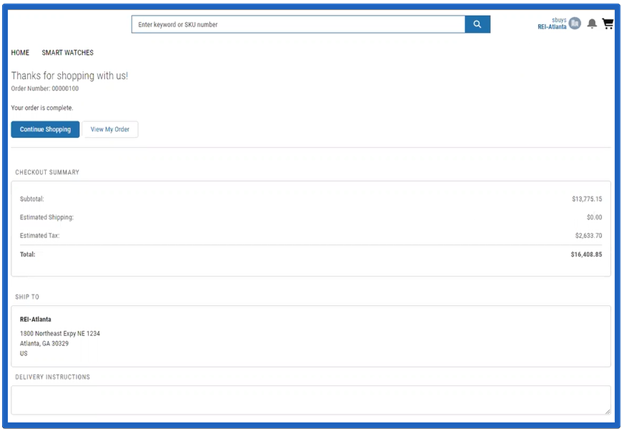
After your customers click Submit Payment, they see the Order Confirmation screen which provides verification that an order has been completed. It displays an Order Number, the Checkout Summary, the Ship To address, and Delivery Instructions. The order contains prices and information that match SAP because real-time SAP data is used in every step of the the checkout process. At this point, your customers may choose to Continue Shopping or Track My Order.